
SEO Guides · 8 min read
How to Easily Disavow Backlinks – in 3 Minutes (Step-by-Step)
Updated On: February 25, 2026
Disavowing backlinks tells Google to ignore specific links when evaluating your site.
Most websites do not need to use the disavow tool. Use it only when harmful links create a real risk.
This guide shows beginners when to disavow and how to do it correctly — in under three minutes.
When Should You Disavow Backlinks?
You should disavow backlinks only in high-risk situations.
| Use the disavow tool if: | Do not disavow links just because: |
| You received a manual action for unnatural links | They look low quality |
| You previously bought links or participated in link schemes | They come from unrelated websites |
| You see a large number of clearly manipulative backlinks | An SEO tool marks them as “toxic” |
Google already ignores most spam automatically.
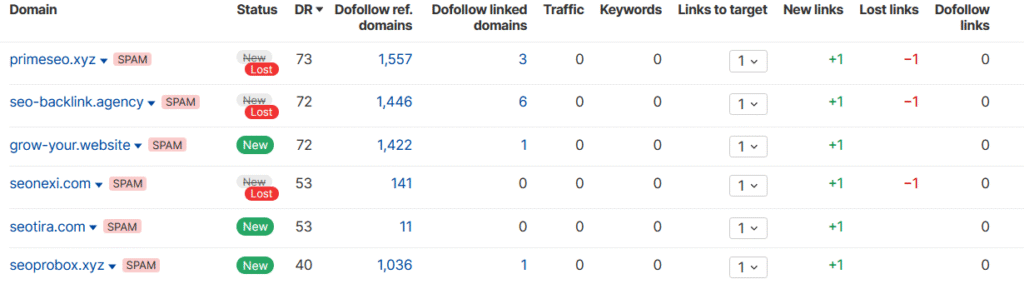
If there is no penalty and no link scheme history, you likely do not need to disavow.
What You Need Before Starting
You need:
- Access to Google Search Console
- A list of harmful links or domains
- A simple text (.txt) file
That’s it.
Reviewing your backlink profile carefully helps protect both your search visibility and long-term organic stability.
How to Disavow Backlinks Using Google Search Console
Step 1: Check for a Manual Action (30 Seconds)
Open Google Search Console → Go to Security & Manual Actions → Manual actions
If you see:

You likely do not need to disavow🙂
If you see: “Unnatural links to your site”. You should proceed.
Step 2: Identify Harmful Links (1 Minute)
Look for links that:
- Were clearly paid or exchanged
- Come from link farms or private blog networks
- Appear in large volumes from the same spam domain
Focus on domains, not individual URLs.
If a domain is spammy, disavow the entire domain.
In rare cases, manipulative backlinks can harm your SEO metrics, especially if they cause a manual penalty.
Example of a bad domain:
- Random blog
- No real traffic
- Outbound links to casinos, pills, crypto, etc.
Avoid disavowing legitimate websites just because they look small or outdated.
Step 3: Create a Disavow File (1 Minute)
Create a plain text file (.txt).
| Title: Disavow file – February 2026 |
| domain:spamsite.com |
| domain:badlinksnetwork.com |
Step 4: Submit the File to Google (30 Seconds)
Use Google’s official Disavow Tool:
👉 https://search.google.com/search-console/disavow-links
1. Select your property
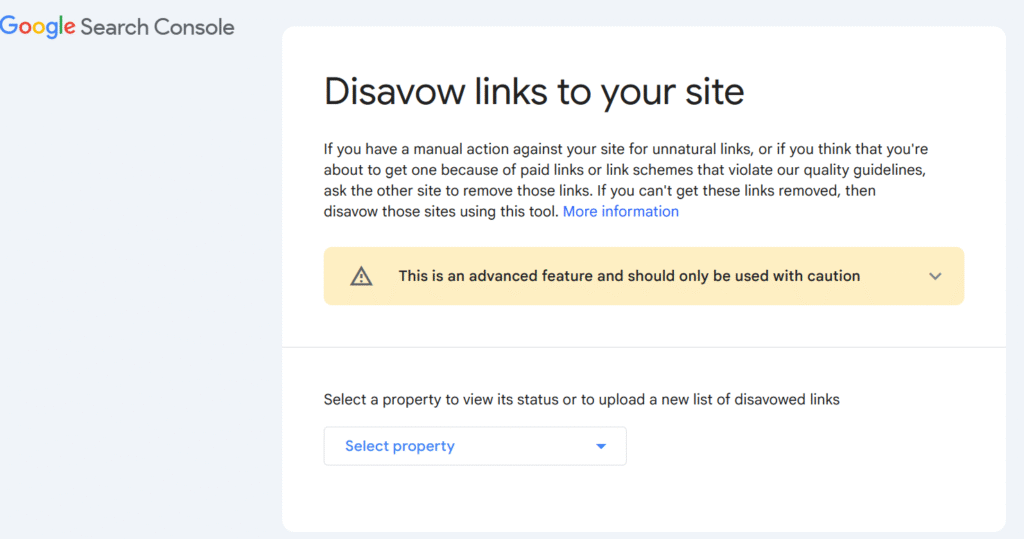
2. Upload the file
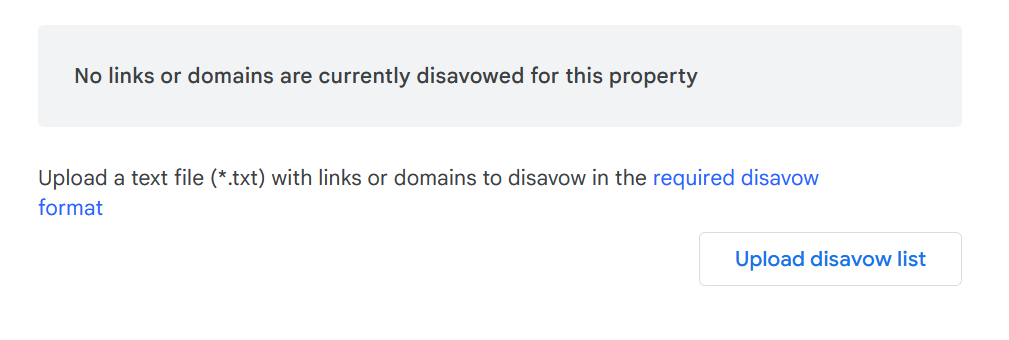
3. Click Submit
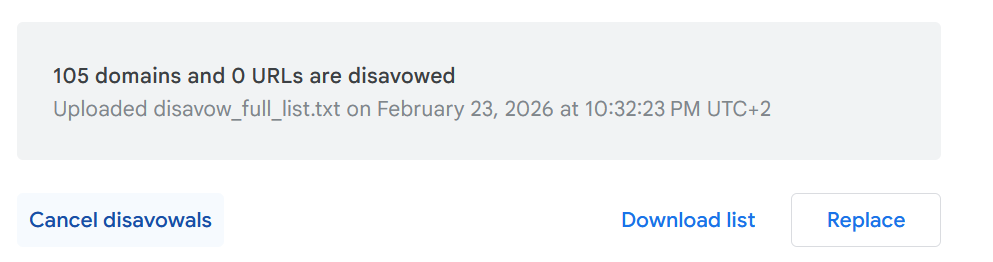
Important:
- Uploading a new file replaces the old one
- Processing may take several days
- Ranking recovery (if penalized) may take weeks
Common Beginner Mistakes
| ❌ Disavowing links without a penalty |
| ❌ Trusting “toxicity score” blindly |
| ❌ Disavowing hundreds of domains at once |
| ❌ Updating the file weekly |
The disavow tool is an emergency tool — not a routine SEO task!
Final Takeaway
The disavow tool exists for damage control. Disavow only if:
| You received a manual penalty |
| You knowingly built manipulative links |
| You see clear, large-scale spam |
When you do need it, keep the process simple:
- Confirm the risk
- List harmful domains
- Upload a clean .txt file
- Submit and wait
Used correctly, disavow protects your site. Used unnecessarily, it can harm it.
